
How do I test my Base battery?
Use this walkthrough to run a quick, safe test of your Base backup system so you know what to expect during a real outage.
Before you start
Plan a 30-minute window when you can stay home for the whole test.
Make sure you have the Base mobile app installed and can log in.
Don't have the app? Download it here for Apple or Android.
Only do this if you feel comfortable around your electrical breaker box area.
If anything looks, sounds, or smells unusual at any point, stop and message our team.
Safety first
Please also read the below instructions in full, before starting the process.
Follow the steps exactly.
Open only the disconnect box as described below.
Do not remove or open any larger electrical panels.
Do not leave your home running on battery for more than 30 minutes during this test.
There are slightly different instructions if you have our ~40 kWh battery or our 25 kWh batteries. Please follow the appropriate instructions for your system.
For our ~40 kWh system:
Step 1: Find the Disconnect switch
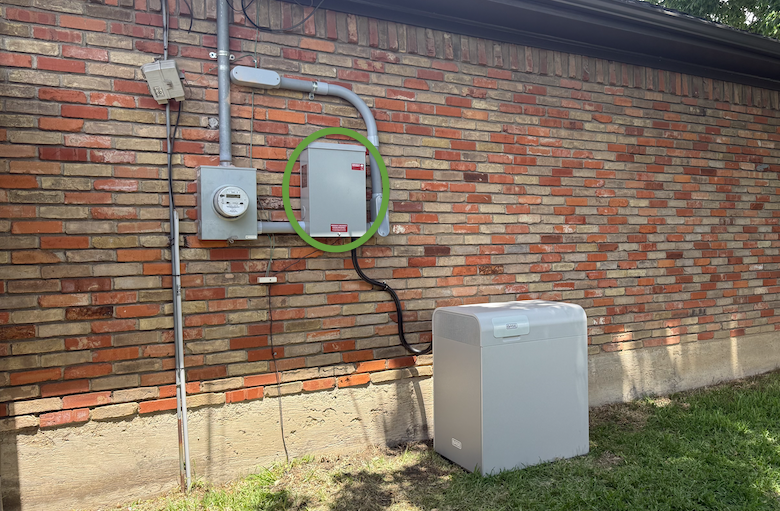
Go to the area near your battery.
Locate the grey box on the wall near your battery.
Do not remove or open any larger electrical panels.
Open the grey cover (circled in green in the photo above).
Step 2: Simulate an outage
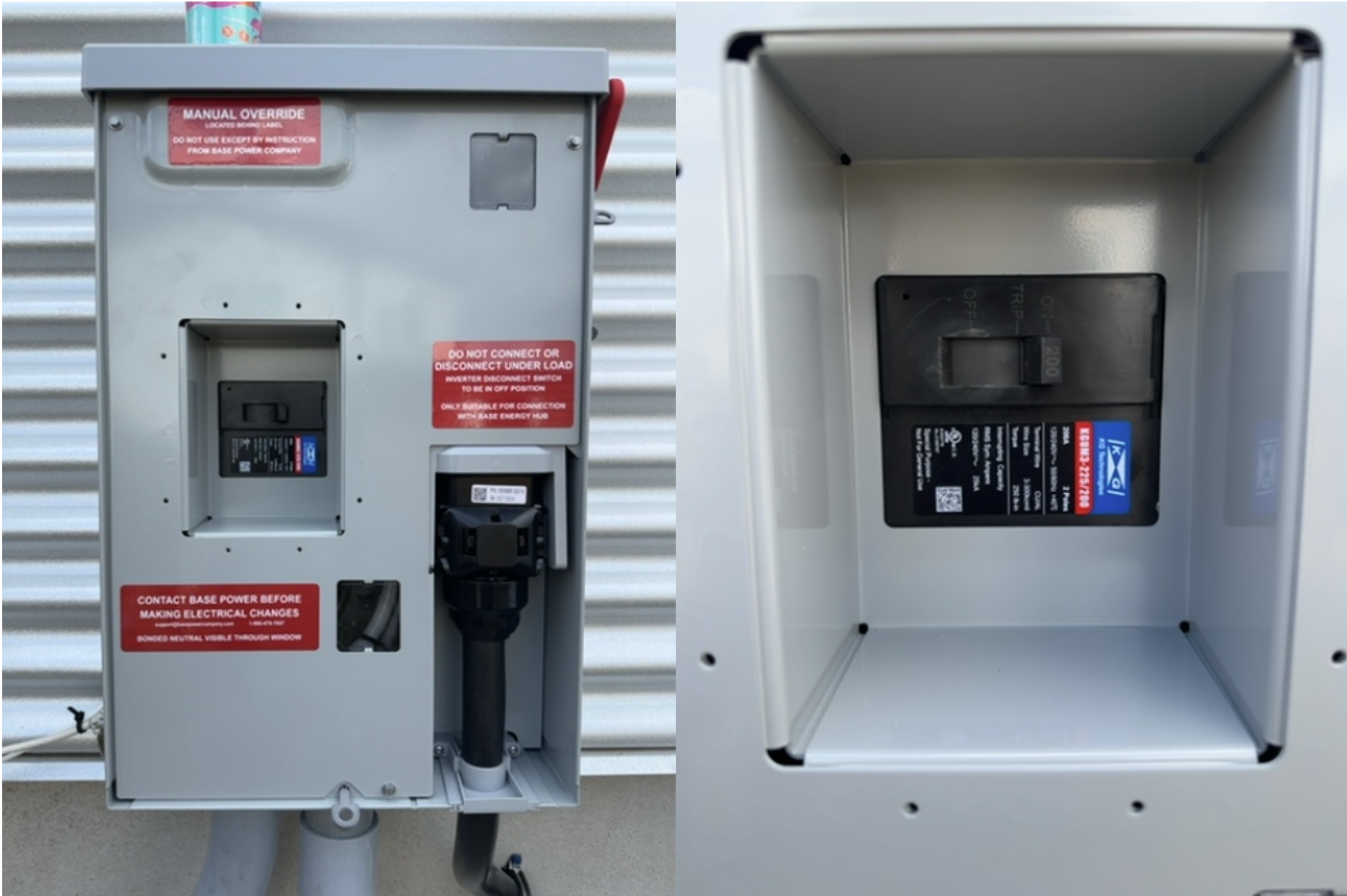
Inside the small gray cover, you’ll see a breaker-style switch.
Flip the switch to simulate a power outage.
After flipping the switch, skip below to Step 3: Confirm your home is on backup power.
For our 25 kWh or 50 kWh systems:
We highly recommend watching the video above; the text below will simply summarize the video in a written format.
Please also read the below instructions in full, before starting the process.
Step 1: Find the Hub switch
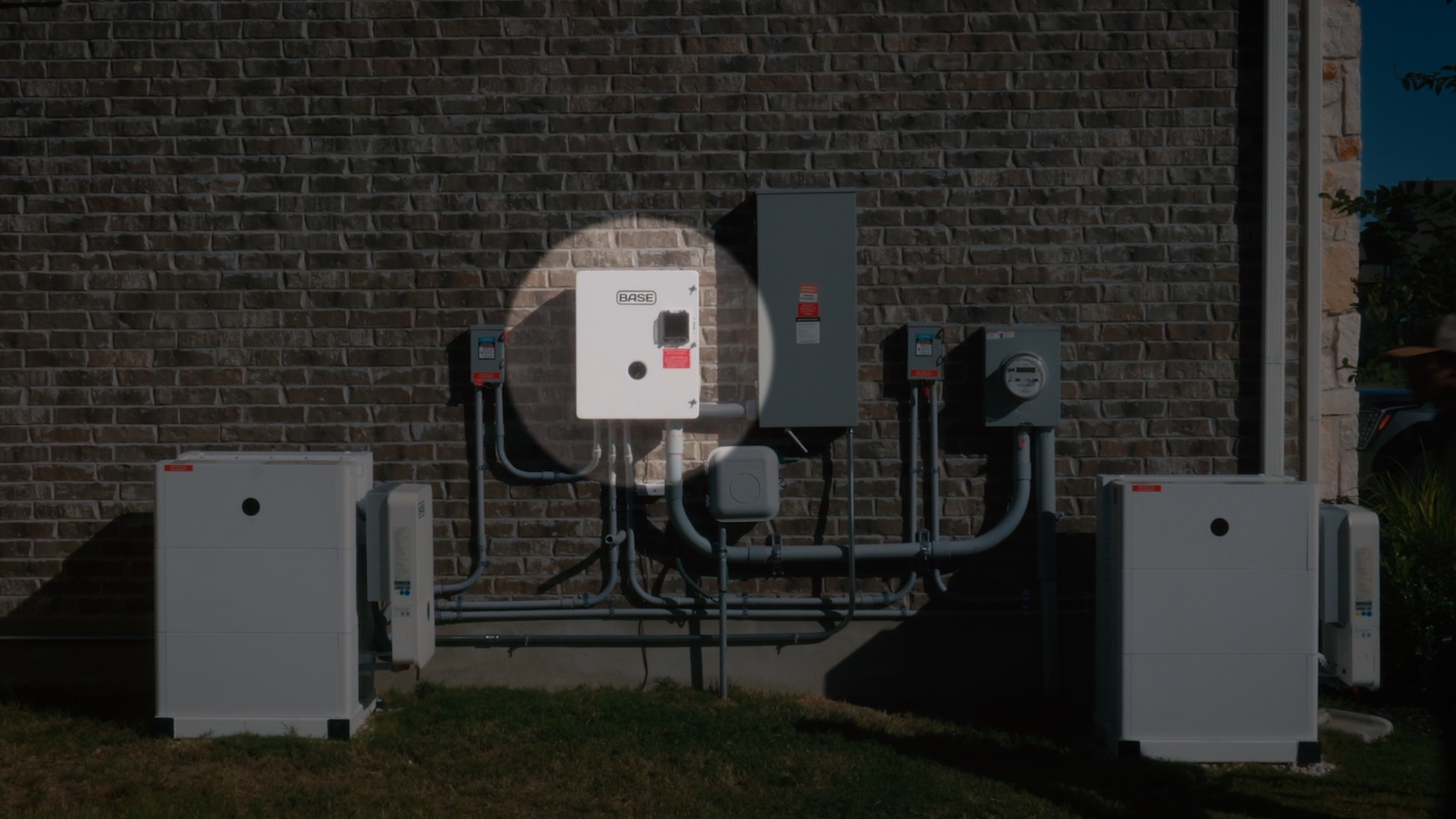
Go to the area near your main breaker box.
Locate the white Hub box closest to it.
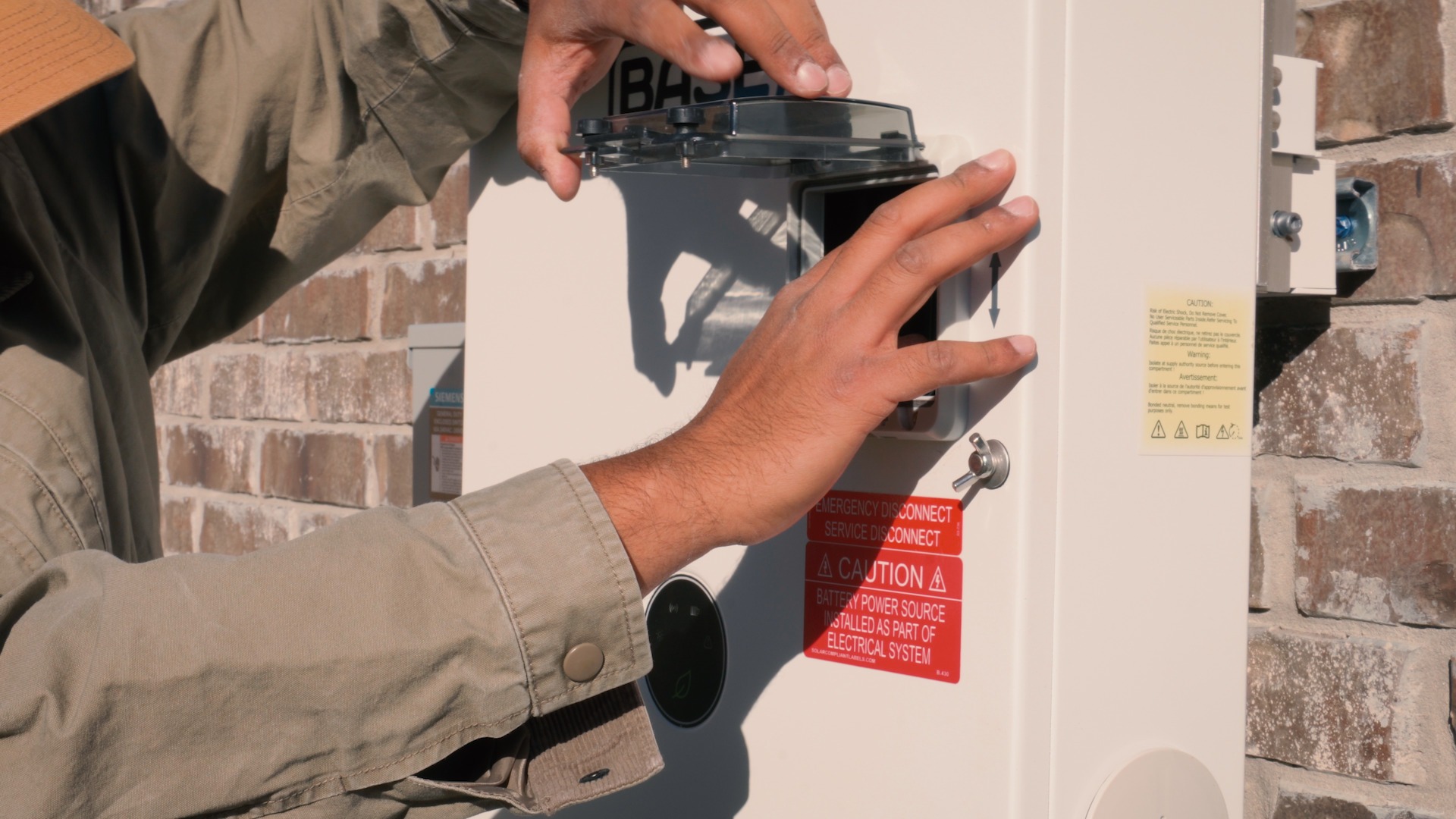
On the Hub box, find the small gray cover
Loosen the black screws on the bottom by hand.
Open the gray cover.
Step 2: Simulate an outage
Inside the small gray cover, you’ll see a breaker-style switch.
Flip the switch to simulate a power outage.
Step 3: Confirm your home is on backup power
Go back inside and confirm the lights stay on.
Open the Base app.
Confirm the app shows your home is being backed up by the battery.
If someone was already inside, ask them how the transition felt.
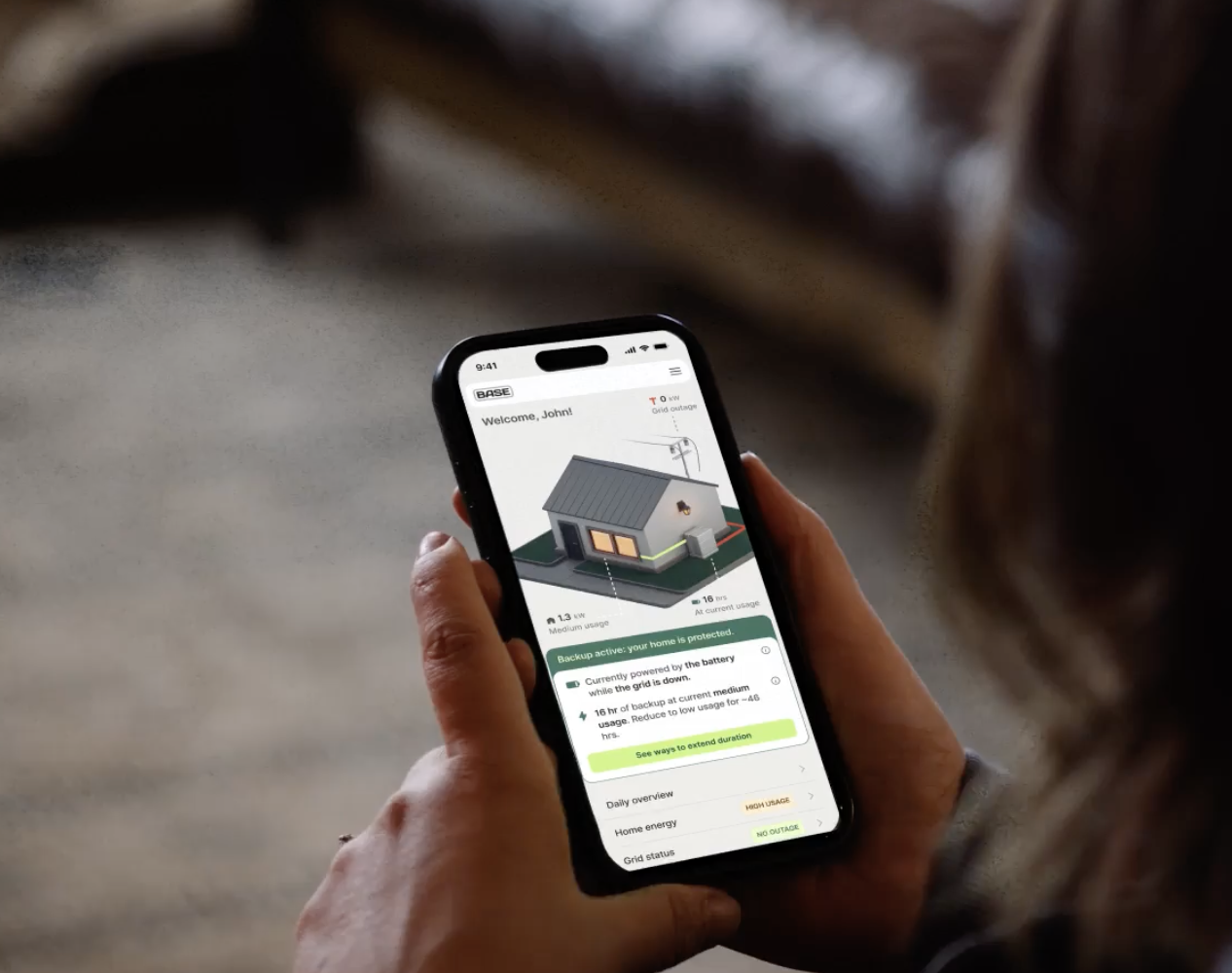
Step 4: Test real usage and see backup duration
While still on backup power, turn on a few appliances and watch the app to learn what changes your usage and estimated runtime.
Try a mix of:
Low usage: lights, fridge, outlets
Higher usage: A/C, electric heat, dryer, etc.
Watch how your usage affects backup duration in the app. This will help you get a sense on how to best balance comfort and backup duration in the event of an actual power outage.
If your battery shuts down during the test:
This can happen with high power use (over 11.4 kW) or with certain AC units that have a high Locked Rotor Amps value).
Follow the in-app troubleshooting steps to recover.
Step 5: Restore grid power
Flip the switch you turned off back on to return to grid power.
Close the cover that was opened to expose the switch.
Grid power won't be restored immediately—approximately 5 minutes after flipping the switch, Base will move you back onto grid power. We maintain this 5 minute 'standby period' where your home remains on battery power, in order to protect your home against grid voltage volatility (also known as brownouts).
After 5 minutes, confirm in the Base app that grid power is restored.
As a reminder, do not leave your home running on battery for more than 30 minutes during this test.
Step 6: Share your results
Open this feedback form (takes about a minute).
Follow the steps on the form to let us know how your experience went.
If at any point during the test, you fully lose home power for more than a few seconds, please attempt to get back on grid power and contact our Member Experience team from your Base app.